

Invisible characters are one of the most frustrating problems in data cleaning. They hide in text data and break imports, searches, and joins without any visible sign. A customer ID with a hidden character won't match its twin in another file, so a sales total and a finance total for the same quarter can differ, and two teams end up arguing about which number is right.
These hidden characters sneak in when you copy and paste from emails, websites, spreadsheets, AI-generated outputs, or APIs. The source contains invisible Unicode characters representing formatting instructions that get carried into your data. Data imports fail, searches return nothing, sorting breaks, and filters stop working, often with error messages that don't say what went wrong. And because nobody can see the cause, finding it can take hours.
In this guide, we'll explain what invisible Unicode characters are, show you the most common types, and walk you through how to find and remove them using Knime.
What are Unicode characters?
Unicode is the standard computers use to represent text. It gives every character in every language a unique number, called a code point, written as U+ followed by a hexadecimal number. The Tamil letter அ, for example, is U+0B85.
Unicode also sorts characters into categories based on what they do, such as letters, numbers, punctuation, and formatting. The most relevant categories are:
| Category | Regex Pattern | Examples |
| Letter (L) | \p{L} | A, б (Cyrillic), 漢 (Chinese) |
| Number (N) | \p{N} | 1, Ⅳ |
| Symbol (S) | \p{S} | +, $, ♫ (musical note), ☀️ (sun symbol). |
| Format (Cf) | \p{Cf} | Zero-Width Space (U+200B), Zero-Width Joiner (U+200D) |
These categories help for several reasons: in text processing, for example, to count letters and identify punctuation. The Format (Cf) category holds most zero-width characters, which are the hardest invisible characters to spot and the ones we'll target first. Other invisible characters sit in different categories: tabs and line breaks are control characters (Cc), and the non-breaking space is a space separator (Zs).
What are invisible Unicode characters?
Invisible Unicode characters come in various types, each having a different purpose.
Some of the common types are:
- Whitespace characters: Space (U+0020), the most familiar invisible character, representing a blank space; Tab (U+0009), used to create horizontal space between characters.
- Zero-width characters: Zero-Width Space (U+200B), appears as no space but influences line breaking; Zero-Width Joiner (U+200D), facilitates the joining of adjacent characters.
- Control characters: Carriage Return (U+000D), moves the cursor to the beginning of the line; Line Feed (U+000A), advances the cursor to the next line.
Common invisible characters at a glance
| Character | Code Point | What It Does | Where It Sneaks In |
| Space | U+0020 | Blank space between words | Everywhere |
| Tab | U+0009 | Horizontal spacing | Spreadsheets, TSV files |
| Zero-Width Space | U+200B | No visible space affects line breaks | Web copy, HTML editors |
| Zero-Width Joiner | U+200D | Joins adjacent characters invisibly | Emoji sequences, multilingual text |
| Carriage Return | U+000D | Moves the cursor to the start of the line | Windows line endings, CSVs |
| Line Feed | U+000A | Advances to the next line | Unix/Mac line endings |
| Byte Order Mark | U+FEFF | Marks encoding type at the file start | CSV exports, UTF-8 files |
| Soft Hyphen | U+00AD | Invisible hyphenation hint | Word processors, web content |
| Non-Breaking Space | U+00A0 | Space that prevents a line break | Web pages, PDFs, AI-generated text |
Where invisible characters come from
Invisible Unicode characters are more common than ever. Here are the most frequent sources:
- AI-generated text: LLM outputs from ChatGPT, Claude, Gemini, and other tools can contain zero-width spaces, non-breaking spaces, and other invisible formatting.
- Web scraping and API responses: HTML source code often includes hidden formatting characters.
- Copy-pasting from websites or PDFs: different encoding standards (UTF-8, ISO-8859, etc.) introduce invisible characters during conversion.
- Spreadsheet exports: Excel often saves CSV files in Windows-1252 encoding, while many tools expect UTF-8. The mismatch injects hidden characters.
- Cross-platform collaboration: files edited on Windows, Mac, and Linux use different line ending characters.
Why invisible characters matter more with AI
In 2026, invisible characters became more than a data quality problem. Attackers now use them to slip past systems that read text.
- Between February and May 2026, a phishing campaign hid invisible Unicode tag characters inside finance words like “funding,” so email filters looking for those words missed them. At its peak, the campaign ran to more than a million flagged messages a day. Microsoft's security team, which tracked it, recommends stripping these characters from text before any system reads it, including AI tools.
- In February 2026, a security researcher showed that instructions hidden with invisible characters in the files AI agents read could make several AI coding agents run commands nobody could see on screen, according to a Cloud Security Alliance research note.
The same characters that break a join can carry instructions into an AI tool. Cleaning text before it reaches an AI model is now part of governing that model. The tag characters in both cases belong to the Format (Cf) category, so the pattern in this guide removes them.
Find and remove invisible Unicode characters with Knime
In Knime, you build the cleaning step as a visual workflow, and there are three ways to handle invisible characters, depending on how much control you need:
- Spot invisible characters before you remove them with the String Format Manager node
- Remove invisible characters without regex using the String Cleaner node
- Target specific characters with regex using the String Replacer node
Take a financial analyst working with a dataset exported from Excel and opened in another tool. Excel saved the file in Windows-1252 encoding, the tool expects UTF-8, and the two don't line up.
The problem turns out to be an invisible Unicode character.
In Excel, the dataset looks like this:

Here, an invisible character (Zero-Width Space) is intentionally inserted in the first row's description.
When the file is opened in the other tool, the invisible characters are not correctly represented due to an encoding mismatch. It will look like this:

1. Spot invisible characters before you remove them
One of the trickiest parts of dealing with invisible characters is confirming they're actually there. The String Format Manager node helps with this. It attaches display formatting to your string columns without changing the underlying data. When configured, it shows placeholder symbols for non-printable characters like line breaks, carriage returns, tab stops, and non-breaking spaces directly in the Table View.
This means you can visually inspect your data and see exactly where invisible characters are hiding, without switching to another tool.

To set it up: connect the String Format Manager to your data, select the string columns you want to inspect, and check the option to display non-printable characters as symbols. The output table will look the same, but with visible placeholders where invisible characters exist.
2. Remove invisible characters without regex
If you'd rather skip regular expressions, the String Cleaner node handles invisible character removal through a simple configuration dialog. It can:
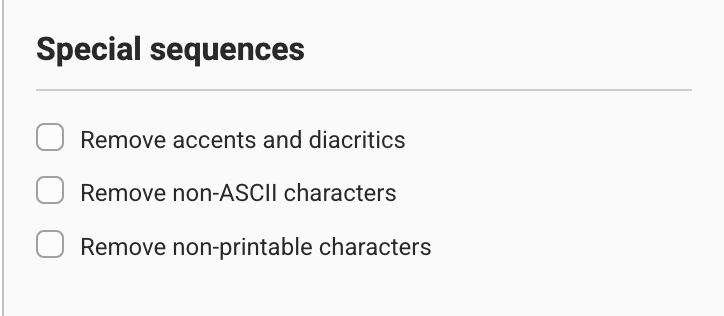
- Remove special sequences (accents, diacritics, non-ASCII characters, non-printable characters)
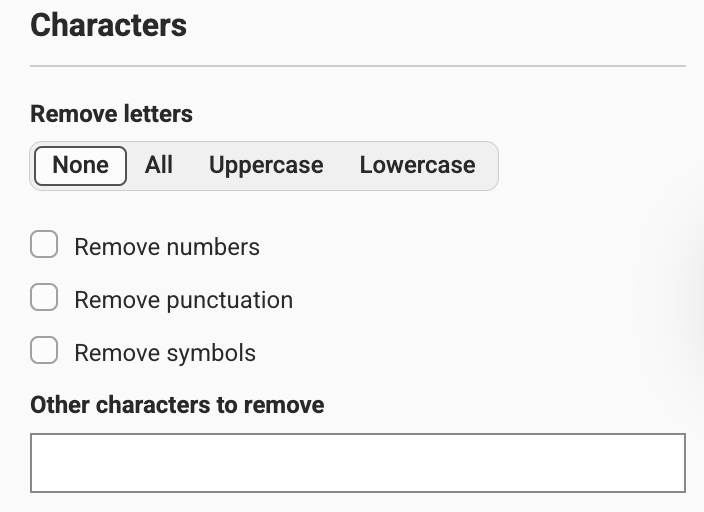
- Remove characters (letters, numbers, punctuation, symbols, emojis or custom characters)
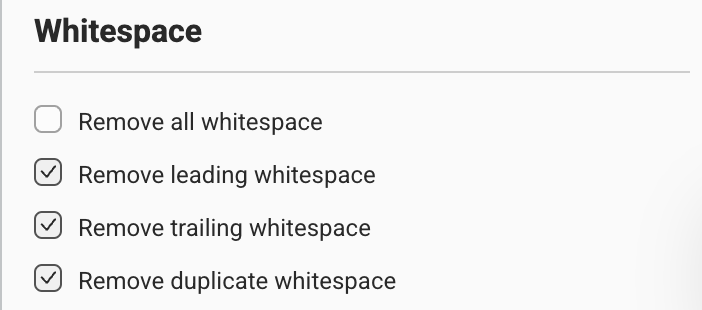
- Clean up whitespace (remove all, leading, trailing, or duplicate whitespace)
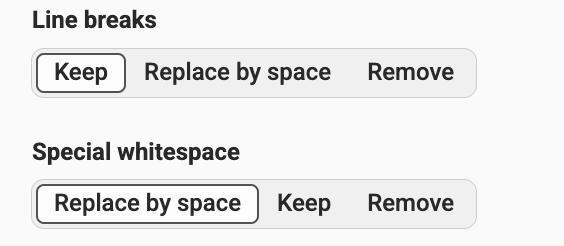
- Handle line breaks and special whitespace (keep, replace with space, or remove)
- Change casing and pad strings (uppercase, lowercase, capitalize, pad to minimum length)
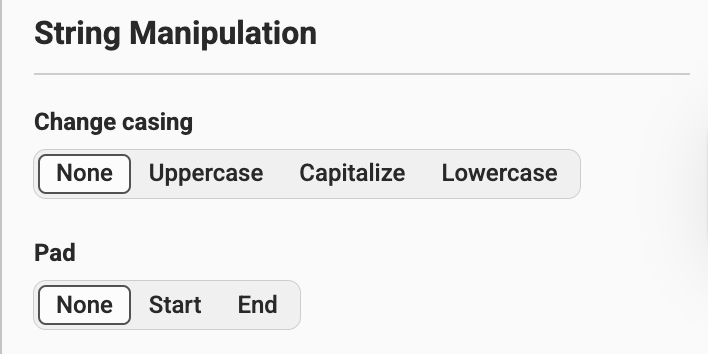
To use it: connect the String Cleaner to your data, select the target columns, and enable “Remove non-printable characters” and “Remove special whitespace” (or replace with standard space, depending on your needs). You can choose to modify the column in place or create a new output column. For more control over exactly which characters to target, you can use the String Replacer with a regex pattern.
3. Target specific characters with the String Replacer node
Step 1: Connect the String Replacer node to your dataset.
Connect the String Replacer and open the configuration window.
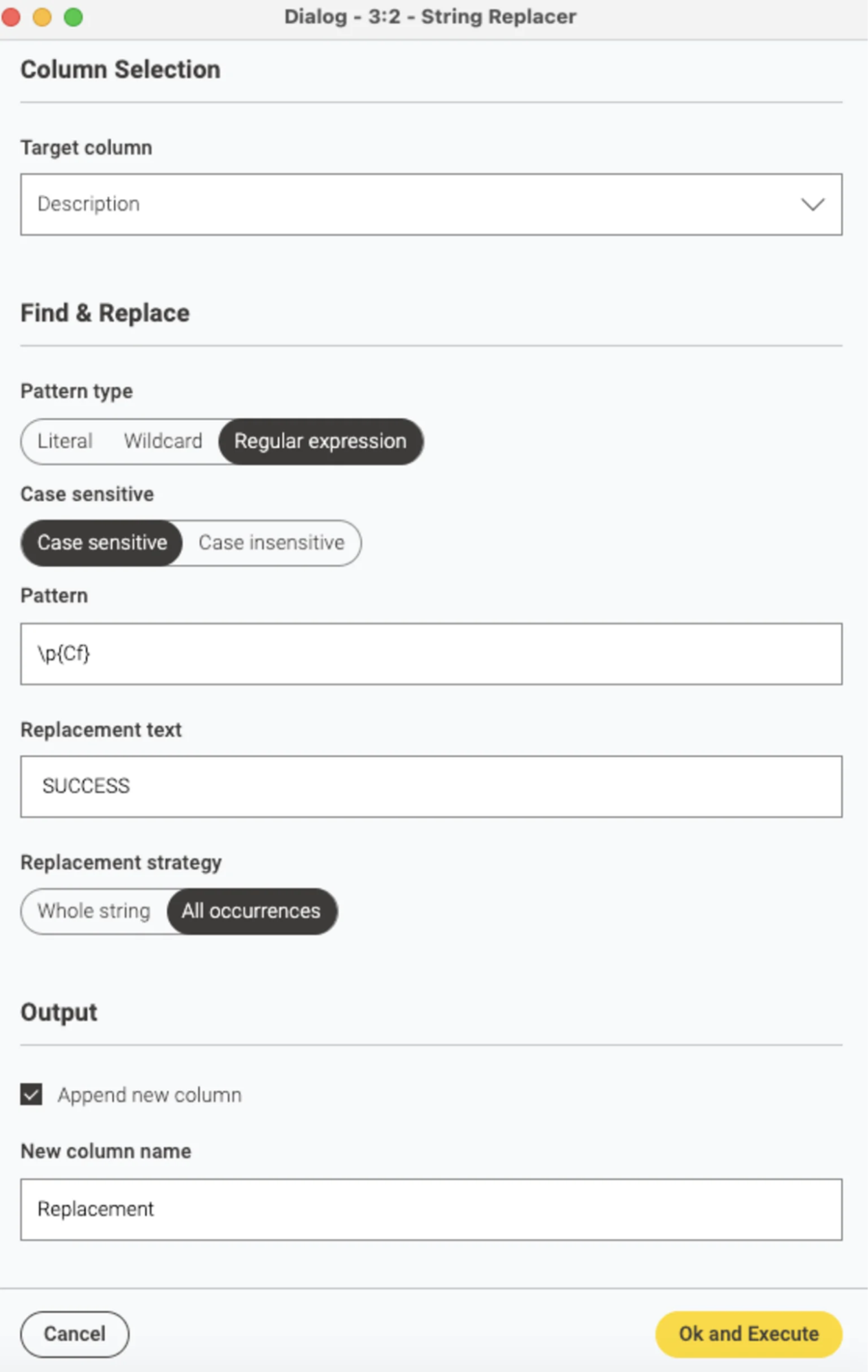
Step 2: Choose the target column.
Select the column containing the invisible Unicode characters. In this case, the target column is named “Description.”
Step 3: Select “Regular expression” as the pattern type.
The String Replacer offers three pattern types: Literal (exact match), Wildcard (flexible match with * and ?), and Regular expressions. Select Regular expression. This lets us target invisible characters by Unicode category instead of one at a time.
Step 4: Enter the pattern \p{Cf}.
This is the key. The pattern \p{Cf} matches any character in the Unicode “Format” category, such as zero-width spaces, zero-width joiners, and byte order marks. To also catch non-breaking spaces, use the pattern [\p{Cf}\x{00A0}].
Enter \p{Cf} as the pattern and leave the replacement text empty (or enter a placeholder like “SUCCESS” to verify it worked).
Step 5: Create a new column for the output.
Checking the “Append new column” box creates a new column in your dataset. The new column contains the “cleaned” text where the invisible characters are removed and replaced. The new column is named “Replacement.”

That's it.
Not sure which approach to use?
Get tips from Knime's AI Assistant
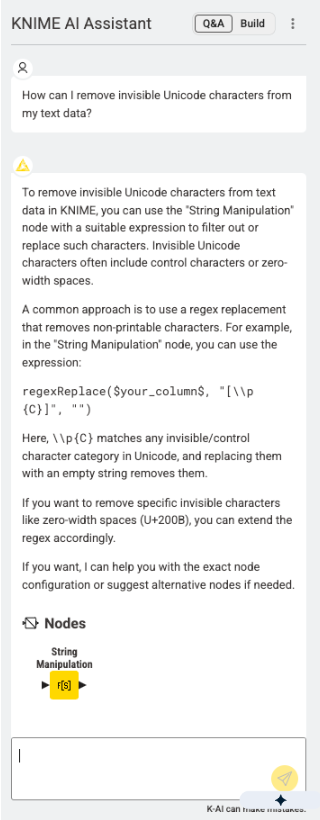
Knime has an AI assistant that answers questions and builds visual workflows from your directions. Asked “How can I remove invisible Unicode characters from my text data?”, it suggests the String Manipulation node with the expression regexReplace($column$, "[\\p{C}]", ""). The \p{C} pattern is broader than \p{Cf}: it also removes control characters such as tabs and line breaks, so use it when you want those gone too.
Clean data once, for every team
Invisible characters are a small problem with a large reach. One hidden character in a key column can change a join, a total, and every report built on it, and different teams end up reading different numbers from the same data.
In Knime, the cleaning step sits in a visual workflow that anyone can open: which columns were checked, which characters were removed, and what the data looked like before and after. Save it as a shared component, and every team that pulls the same data starts from the same clean version.
To get started, you can:
- spot invisible characters with the String Format Manager
- clean them in a single node with the String Cleaner
- target specific characters with the String Replacer and a regex pattern
Continue exploring: