

Excel is still one of the most widely used tools for working with business data. Over the past few years, it has become even more capable. Features like Copilot, Power Query, and newer functions such as REGEX Support and improved import functions such as IMPORTTEXT and IMPORTCSV have made it easier to clean, analyze, and manipulate data without memorizing complex formulas.
But even with these improvements, one challenge remains: spreadsheet processes are still largely manual. And when small manual steps are repeated over time, especially in finance, supply chain, or audit work, they can introduce errors that are difficult to detect and even harder to reproduce.
Sorting data in Excel is a perfect example. It’s simple in principle, but small mistakes can scramble rows, disconnect data from its headers, or make it difficult to trace how a report was produced.
In this article, we’ll look at common Excel sorting problems, how to fix them, and when it makes sense to move beyond manual spreadsheet workflows to a more repeatable approach.
Whether you stick with Excel or explore the alternative solution with KNIME, you’ll end up with a better way to sort your data.
Excel has improved, but sorting mistakes still happen
We think that spreadsheets have one fundamental limitation: Excel processes are still largely performed directly in the working file. When a report requires multiple manual steps to sort, filter, copy columns, apply formulas, and rearrange data, it can be difficult to guarantee consistency over time.
That’s why even experienced Excel users still encounter sorting problems that disrupt reporting or analysis.
Why Excel sorting errors can break business reporting
Sorting issues may seem minor, but they can have real consequences when spreadsheets support business decisions.
For example:
- A finance team sorting transaction records may accidentally misalign rows and amounts.
- A supply chain analyst sorting supplier data might separate product codes from their corresponding vendors.
- An audit team reviewing reconciliations could unknowingly analyze a dataset where rows were partially reordered.
Because Excel allows users to manipulate the data directly, mistakes can propagate quickly.
In many cases, the problem isn’t obvious until much later, for example, when a report doesn’t match expectations, or one of your colleagues tries to reproduce the results.
Understanding common sorting pitfalls can help reduce these risks.
6 Common Excel Sorting Problems (and How to Fix Them)
1. Back up your data before sorting it
One of the most common recommendations when sorting Excel data is also the most telling: create a backup before you start.
Sorting operations modify the working dataset. If you make a mistake, there may be no easy way to undo the process after several steps have been applied.
How to reduce risk in Excel
Before sorting, duplicate your worksheet or save a copy of the file. This gives you a version of the original dataset to return to if something goes wrong.
2. Headers getting mixed into the dataset
A frequent mistake occurs when headers are accidentally included in the sorting range. Instead of remaining at the top of the table, the column names become part of the dataset.
This can quickly make the spreadsheet difficult to interpret.How to fix it in Excel
- Select the full data range, including the headers
- Go to Data → Sort
- Check the box labeled My data has headers
- Choose the column to sort by and apply the sort
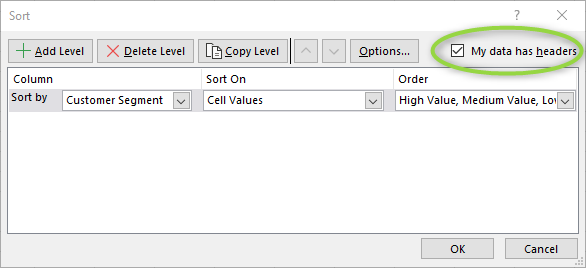
Tip: Formatting headers differently (bold text or background color) can also help make them easier to recognize.
3. Sorting a single column instead of the entire table
Another common issue occurs when users accidentally sort only one column instead of the entire dataset.
When that happens, the column being sorted moves independently while the rest of the row stays in place. The relationships between columns are broken.
For example, supplier names may no longer match their invoice values or product categories.
How to fix it in Excel
If Excel detects a partial selection when sorting, it will prompt you to choose between:
- Expand the selection
- Continue with the current selection
Always select Expand the selection to ensure the entire table moves together.
If the mistake happens, use Undo (Ctrl + Z) immediately.
4. Hidden rows disrupting the sort order
Hidden rows can cause unexpected sorting behavior in Excel.
When rows are hidden manually, and a sort is applied, the hidden rows may remain in their original position while visible rows move. The result is a dataset that appears sorted but contains inconsistencies.How to fix it in Excel
Before sorting:
- Select the full worksheet or data range
- Unhide any hidden rows or columns
- Apply the sorting operation
Using filters instead of manually hiding rows can help avoid this issue.
5. Custom sorting requiring manual setup
Sometimes data needs to be sorted using a business-specific order rather than alphabetically.
Examples include:
- High, Medium, Low
- Critical, Major, Minor
- Approved, Pending, Rejected
Excel supports custom lists but requires manual configuration.
How to create a custom sort in Excel
- Open the Sort dialog
- Choose Custom List under the Order menu
- Enter the values in the order you want Excel to follow
While effective, these rules may be difficult to track later if someone else inherits the spreadsheet.
6. Reordering columns breaking formulas
Sorting is often just one part of preparing a spreadsheet. Columns may also need to be rearranged to match reporting formats or presentation requirements.
Moving columns can introduce new risks:
- overwriting existing columns
- breaking formula references
- disrupting dependent calculations
How to reduce the risk in Excel
Insert blank columns before moving data and review formulas afterward to ensure references still point to the correct fields.
Why spreadsheet fixes don’t solve the bigger problem
Each of these Excel sorting issues has a workaround, but these fixes address individual steps, not the process as a whole.
When spreadsheet work becomes part of a recurring workflow, such as monthly reporting, operational dashboards, or data reconciliation, these manual steps accumulate.
Over time, this can lead to:
- inconsistent processes
- difficulty reproducing results
- version conflicts between collaborators
- slower performance as files grow larger
At that point, the problem is no longer just sorting, but having to manage the process behind the spreadsheet.
Excel works for ad hoc analysis but not always for repeatable reporting
Excel remains an excellent tool for many types of work. It works particularly well when you need to:
- explore data quickly
- perform one-time analysis
- inspect or validate a dataset
- run small experiments with formulas or pivot tables
However, when tasks become routine and need to run regularly, spreadsheets can become harder to maintain.
Recurring reporting processes often require:
- combining multiple data sources
- applying the same transformations repeatedly
- preserving original datasets
- ensuring steps can be reviewed later
In these situations, teams often look for tools that help make the workflow itself more structured.
A workflow approach makes data preparation repeatable
Workflow-based tools take a different approach to data preparation.
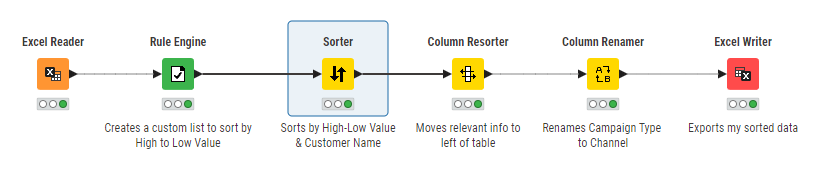
Instead of performing steps directly in a spreadsheet, the transformation logic is defined as a series of connected steps. Data is then passed through those steps to produce the final result.
This provides several advantages:
- the original data remains intact
- the transformation logic is visible
- processes can be reused instead of recreated
- errors are easier to identify and correct
KNIME uses this workflow approach. Users build visual workflows that define how data should be read, transformed, sorted, and analyzed.
The same workflow can then be reused whenever new data arrives.
Excel vs KNIME: Which tool should you choose?
Both Excel and KNIME can be valuable depending on the task.
How to choose:
| Use Case | Excel | KNIME |
| Ad hoc analysis | ✅ | ✅ |
| One-time sorting | ✅ | ✅ |
| Recurring reporting | Limited | ✅ |
| Large datasets | Limited | ✅ |
| Auditability | Limited | ✅ |
| Reusable processes | Limited | ✅ |
Many teams use both tools together: Excel for flexible exploration and KNIME for repeatable data preparation and automation.
When it’s time to move beyond spreadsheet sorting
Sorting issues often become a signal that a spreadsheet workflow has grown beyond what manual processes handle well.
Signs it may be time to rethink the approach include:
- the same spreadsheet process runs weekly or monthly
- multiple data exports need to be combined regularly
- large files slow down analysis
- different team members maintain separate versions of the file
- reporting steps are difficult to document or reproduce
In these cases, building a repeatable workflow can reduce manual effort and improve reliability.
Build a repeatable data workflow instead of fixing spreadsheets
Excel will continue to be an essential tool for working with data. Its flexibility and accessibility make it ideal for quick analysis and exploration. But when spreadsheet tasks evolve into recurring business processes, relying on manual fixes can introduce unnecessary risk and inefficiency.
Workflow tools like KNIME complement Excel by turning those manual steps into structured, reusable processes. Instead of fixing spreadsheet issues one step at a time, teams can define the logic once and run it whenever new data arrives.
The result is a process that is easier to repeat, easier to review, and easier to scale as data grows.
Explore KNIME for Spreadsheet Users